Order handling
This section explains how to create and review orders.
Cashdesk - Create an order
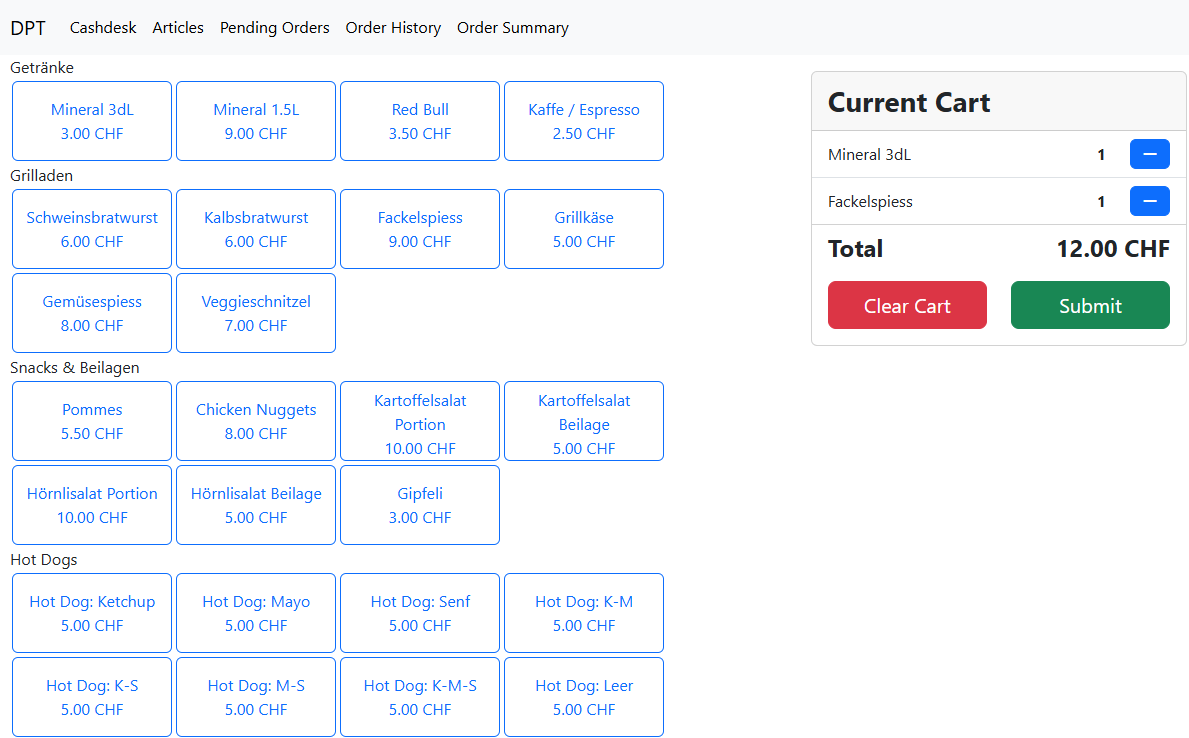
On the cashdesk view shown below a new order can be created by clicking on the desired articles. The articles then are added to the cart. To remove or reduce an article by one press the minus button next it on the cart. Submit an order by clicking the submit button.
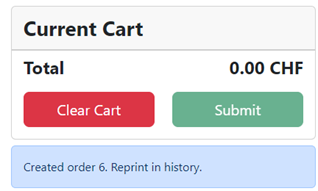
After submitting an order the receipt is printed directly and the corresponding order number is displayed below the cart (in the image below #6).
Order history - Review and edit an order
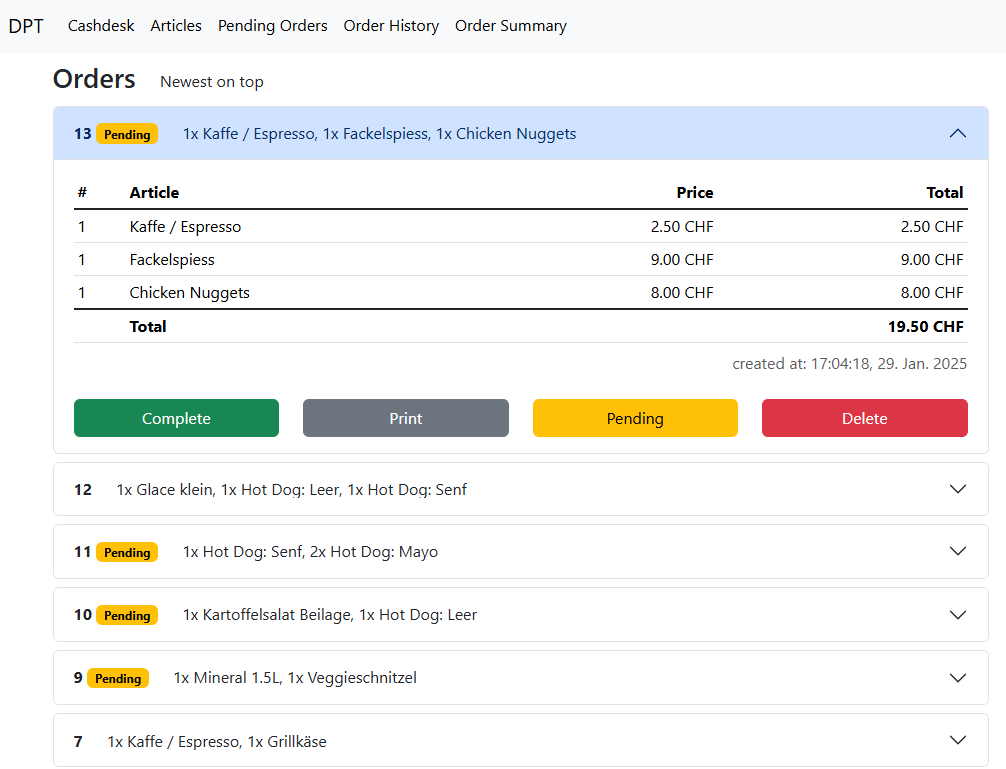
The order history view allows to review, change the state or delete any order. A submitted order can be reviewed in the order history view by clicking on the order as shown for the order 13 in the image below.
This view enables the following actions:
- Change the state of an order to pending or complete with the corresponding buttons (e.g., in case the order was set to complete too early).
- Delete an order permanently.
- Reprint a receipt for an order.
Modifying the articles of an order is not possible due to technical simplifications. If an order is incorrect it has to be deleted and a new order has to be submitted.
Order summary
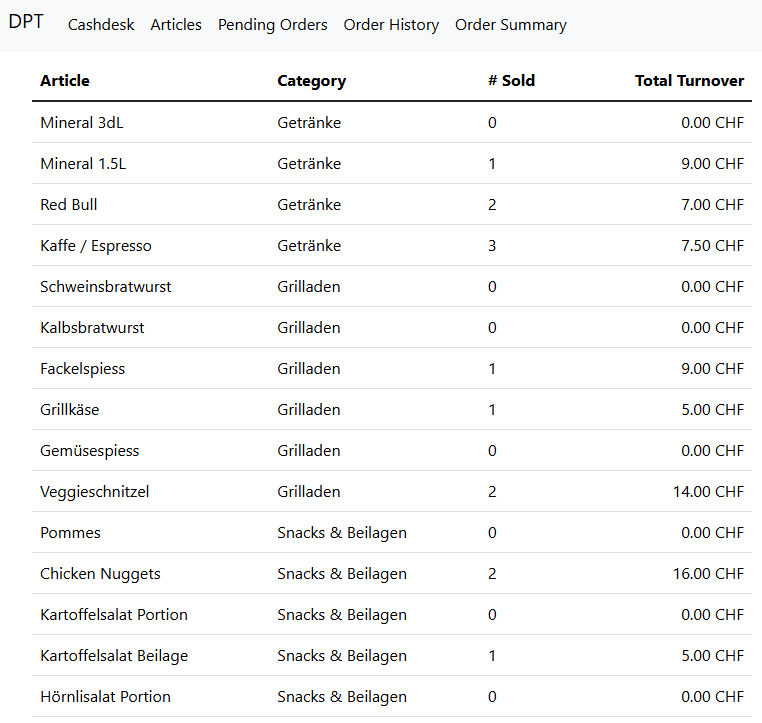
The order summary view gives an overview of all sales. It lists all articles and how many times they have been sold and computes the total turnover.