Workflow
Sales Point is intended to be used at a food serving station where there are selling and pick up desks as well as a kitchen preparing the articles (i.e., food and drinks).
The workflow to serve a customer is (compare figure below):
- The customer orders the desired articles.
- The order taker submits the order and hands out the receipt. The new order is now marked as pending and shows up in the pending orders view.
- The kitchen prepares the articles. They can see all pending orders in real time on the pending orders view.
- The server hands over the articles and collects the receipt (trade receipt for articles).
- The server marks the order as complete after the last article was served.

To simplify the handover for each order a receipt is printed automatically which is handed to the waiting customer. The server then can trade the receipt for the articles. For printer troubleshooting see Printer.
How to handle orders is described in Order Handling. The most important key points are summarized below:
- An order cannot be edited. It can only be deleted. In case an order is wrong it has to be deleted in the order history and a new order has to be submitted.
- In case an order is set to completed too early it can be set back to pending in the order history.
- A receipt can be reprinted in the order history.
Skipping pending state
Some orders (e.g., if only drinks are ordered) can directly be handled by the order taker and thus must not be processed by the kitchen. Setting these orders to pending and then mark them as complete would incur unnecessary overhead. Therefore, each article can be configured whether to skip the pending state (see Article management). For example, if drinks are configured to skip the pending state, an order with only drinks is directly marked as completed in the system. In case of mixed orders, the order still is pending but the pending orders view does only show the pending articles.
Pending orders view
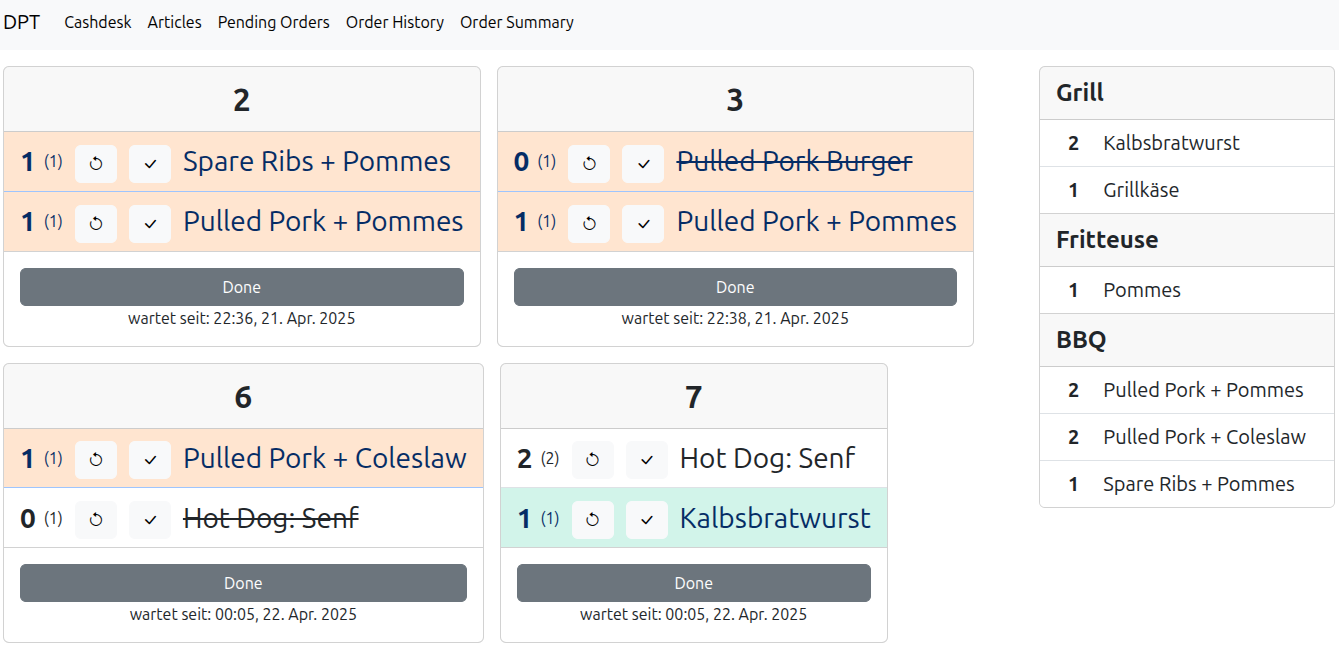
The pending order view shows a ticket system listing all pending orders and their articles as shown in the image below.
- The oldest order is on top left.
- Clicking the button "Done" marks the whole order as complete.
- Each article of an order can be selectively marked as done with the two buttons.
- The bold number shows the number of outstanding items where the number in () shows to total orderd amount.
- If an item was delivered, click the checkmark button. The oustanding count is reduced by one.
- To correct the delivered count, click the left button. The outstanding count is incremented by one.
- Each card shows only the articles which do not skip the pending state.
- On the right there is a kitchen station summary, see below.
Kitchen stations
On the right of the pending order view there is a summary over all pending orders listing how many times an articles in total must be produced at the current time. This listing is sorted by so called kitchen stations (in this case two, Grill & Fritteuse) which simplifies the lookup for the kitchen staff. Each article can be assigned to a kitchen station, see Article management.